Payments
They said yes. Make getting paid the easy part.
Create a payment link, keep the order in view, and match the money when it arrives. Your agent handles the admin; capture and refunds stay under owner control.
- Android — supported
- iPhone — supported
- Mac — supported

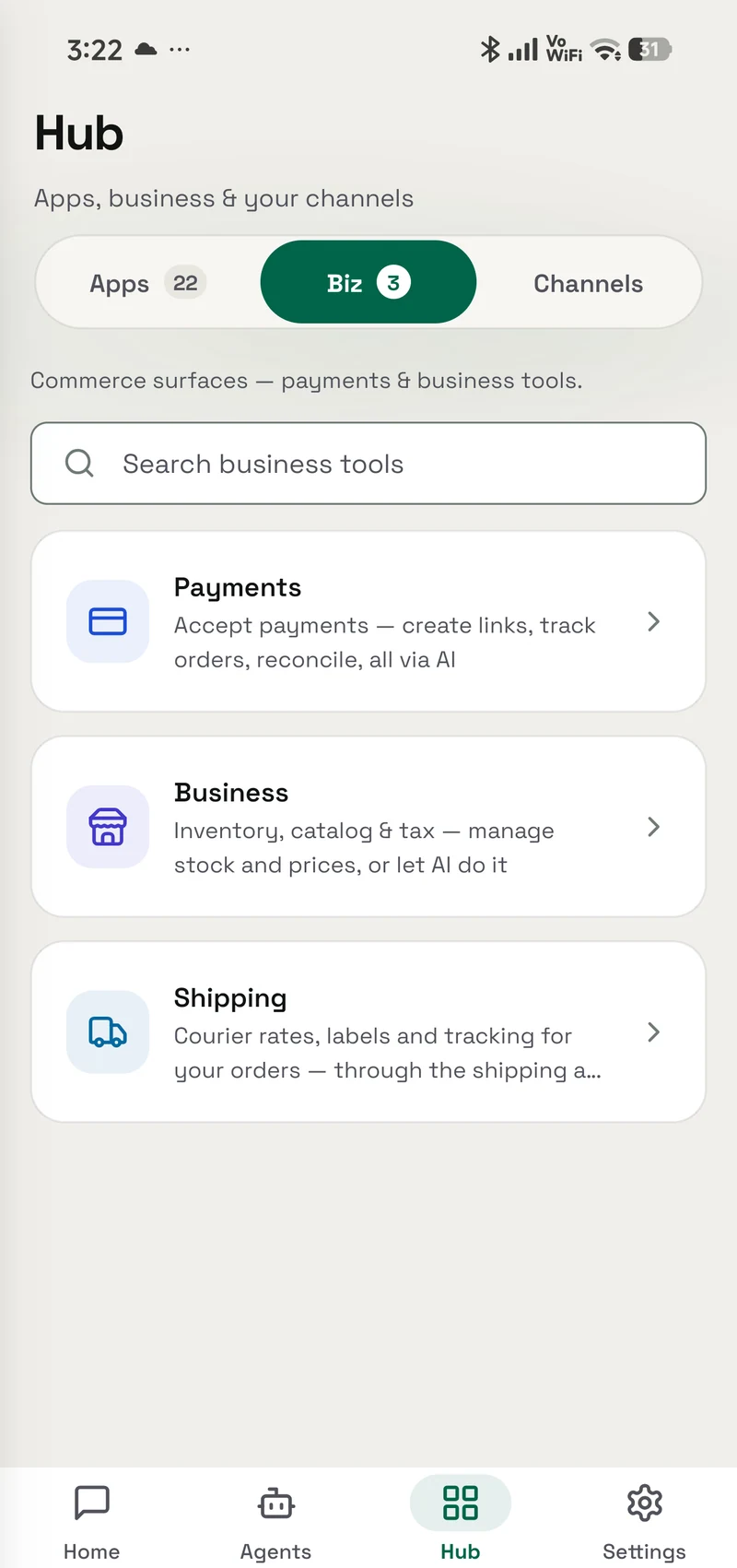
Inside the real app
Explore the screens in a demonstration workspace.
What it does
A link, an order, and a record of what arrived.
For a repair, a custom order or a bouquet, taking payment should not mean building a checkout from scratch. Connect your payment provider in OpenAlly, then let an authorised agent create links and help you follow the orders behind them.
A payment link you can share
Ask for a link with an amount and purpose, then share it with the customer. The connected provider handles the payment page.
Keep the order attached
Create and review orders so you know what the money is for. Keep the amount, customer context and payment status together.
Match what came in
List payments and links, review recent activity, and ask your agent to reconcile incoming money against the orders you expected.
Owner control where it counts
Capture and refunds need the owner’s sign-off. A customer or another contact cannot instruct the agent to move your money.
Interactive walkthrough
Follow one bouquet from order to payment.
Maya’s flower shop is an example. Step through the record without creating a real link or moving any money.
Step 1 of 4
Start with the order you agreed on.
Maya asks for a payment link for a bouquet. Her authorised agent uses the provider she has connected in Payments.
Example link
Bouquet order
- Order
- #1042 · Bouquet
- Amount
- ₹1,200
- Payment link
- Ready to share
“Create a ₹1,200 payment link for the bouquet order.”
Setup
Get started.
Set up the parts you need, then work directly in the app or bring in an agent.
Read the payment links and refunds guide- 01
Connect in Payments
Add the supported provider credentials in the app’s connection screen. Keep credentials out of conversations.
- 02
Choose the agent
Grant Payments to the agent helping with orders and give it only the merchant or business access it needs.
- 03
Review money movement
Create links and review incoming payments from the conversation. Keep capture and refund decisions with the owner.
Example requests
Ask your agent.
“Create a ₹500 payment link for my repair order.”
“Show my last 10 payments.”
“List my recent payment links and which orders are still waiting.”
Frequently asked questions
Before you start.
Do I need to build a checkout website?
A shareable payment link gives the customer a provider-hosted place to pay. You still need a connected provider account that is ready to accept payments.
Can a customer ask my agent for a refund?
They can raise the issue, but capture and refund are owner-only actions. The owner’s sign-off is required before the agent can carry them out.
What does reconciliation mean here?
Matching the payments that arrived with the orders you expected, so you can see what was paid and what remains open.
Can I use the same records for invoices and delivery?
Use the Invoicing skill for invoices and receipts, and Shipping for fulfilment. Those are separate capabilities with their own access and setup.
Android, iPhone and Mac