Shipping · with Shiprocket
The order is in. Get the parcel on its way.
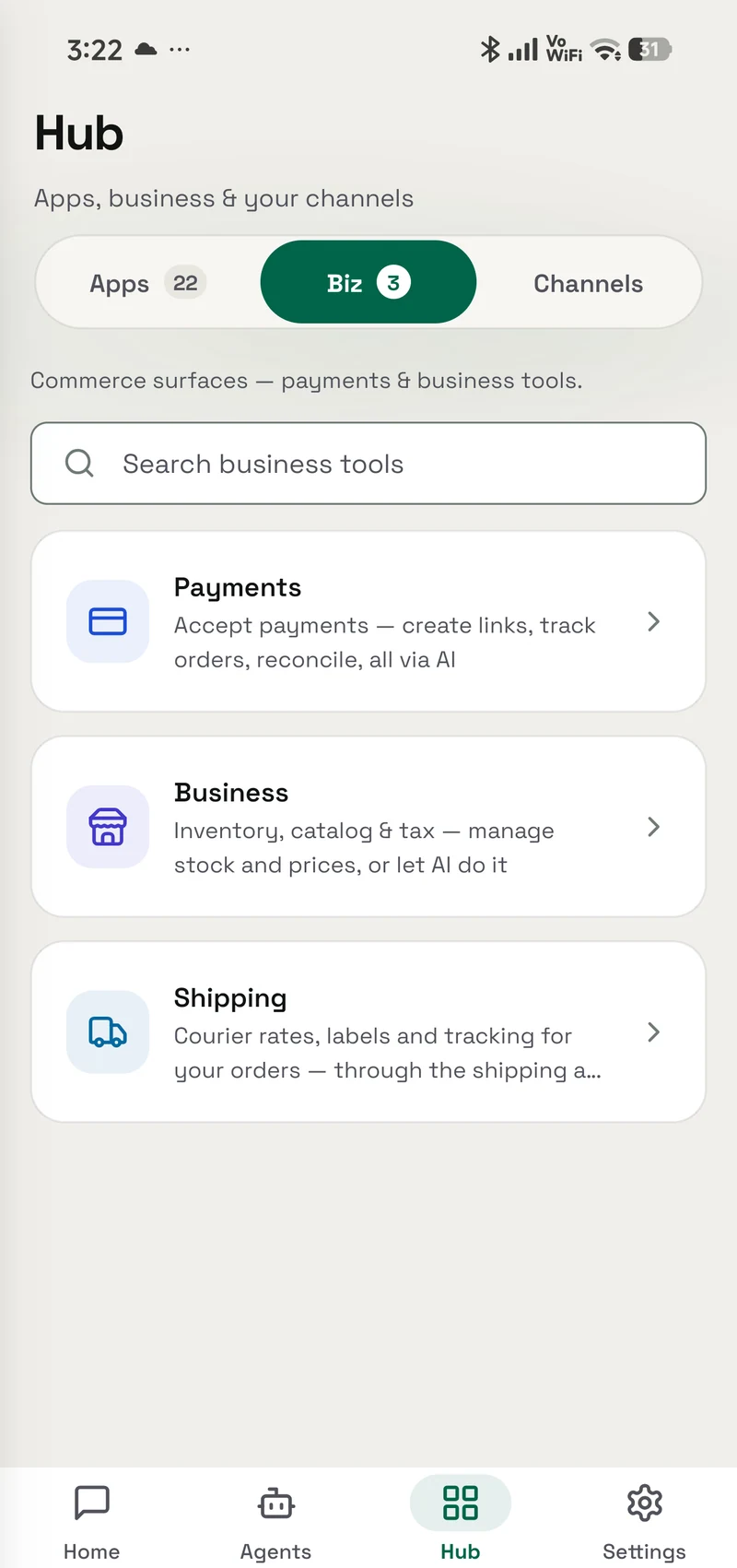
Compare couriers, prepare the shipment, book a pickup and follow the delivery. Bring your Shiprocket account and keep shipping costs under your approval.
- Android — supported
- iPhone — supported
- Mac — supported

Inside the real app
Explore the screens in a demonstration workspace.
What it does
Manage couriers, pickups and tracking.
Connect your Shiprocket account to compare couriers, book pickups and track parcels from OpenAlly. Each shipment keeps its quote, waybill, label and delivery history together, including failed attempts that need your attention.
Compare a real parcel
Use the pickup and delivery pincodes, weight and dimensions to compare available courier prices and delivery estimates. A quote does not book the shipment.
Move from order to pickup
Prepare the shipment, choose a courier, assign the air waybill, schedule collection and get the label. Spending follows the approval rules you set.
Follow every scan
Open the parcel’s timeline or ask about the order. Dispatch and delivery scans advance the order to Shipped and Delivered.
Deal with the exceptions
Failed deliveries and returns show their own states and reasons. Review a reattempt or return with the owner instead of treating it as delivered.
Interactive walkthrough
From a packed order to a delivered parcel.
Explore a sample shipment. Courier names and prices are examples; real rates and estimates come from your connected provider.
Step 1 of 4
Quote the parcel, not a guess.
Dev has packed order #1042. The agent compares services for the actual pincodes, half-kilogram weight and package dimensions.
Example quotes
Courier options
- Standard courierEstimated 3–5 days
- ₹68
- Express courierEstimated 1–3 days
- ₹105
- Package
- 0.5 kg · prepaid
A quote shows options. Nothing has been booked or charged.
Setup
Get started.
Set up the parts you need, then work directly in the app or bring in an agent.
Explore the Shipping skill and its access- 01
Connect Shiprocket in OpenAlly
Open Hub → Biz → Shipping, choose Shiprocket, and enter the account details in its connection screen. Credentials are stored securely on your device, outside chat.
- 02
Prepare the provider account
Add a pickup address in Shiprocket and keep its wallet funded. Configure real package details and the shipping access for the inventories you want to fulfil.
- 03
Grant Shipping to your agent
Enable the Shipping skill for the agent handling orders. Start with a quote, approve the selected charge, then follow the shipment from its detail screen.
Example requests
Ask your agent.
“What will it cost to ship order 1042 to 560001?”
“Compare couriers for this order and show me the cost before booking.”
“Where is the parcel for order 1042?”
Frequently asked questions
Before you start.
Is Shipping the same thing as Shiprocket?
Shipping is the OpenAlly feature. Shiprocket is the provider account you connect for couriers in India. Your parcels and carrier wallet remain with that provider.
Can it book shipments without asking me?
Approval is the default. Automatic shipping requires an explicit inventory setting and spending ceiling, and a quoted charge within that ceiling. Unquoted wallet actions require review.
Are pickup and label actions free?
Do not assume so. OpenAlly treats wallet-touching actions as spending. When the provider does not quote one in advance, the approval says that the price is unquoted rather than showing zero.
What happens to failed deliveries and returns?
They appear with their own state and the courier’s reason. The owner can decide on a reattempt or return; these events do not advance the order to Delivered.
Does the provider’s product catalogue replace Business?
No. The provider’s catalogue and your OpenAlly Business inventory are separate records. Shipping does not promise to keep those catalogues synchronised.
Android, iPhone and Mac